Azure AD integration with MFA
The VC Hub identity provider is compatible with Azure AD, enabling seamless integration. By leveraging Azure AD's multi-factor authentication (MFA) capability, the identity provider can extend MFA support to the VC Hub thereby enhancing security indirectly.
-
Open the Azure portal from Url: https://portal.azure.com/ , then open the Microsoft Entra ID.

-
Click the menu itme "App registration" in the left panel, then click the "+ New registration" icon.

-
Click the "Authentication" menu item in the left panel, then fill the VC Hub login url and logout url into the "Web Redirect URIs" panel.
-
Click the menu item "Token configuration", add the optional claim.
-
Click the menu item "Certificates & secrets", and a pair of client id and client secret.
-
Copy the client id and client secret.
-
Click the menu item "Overview" from the left panel, then click the "Endpoints" icon and copy the "OpenID Connect metadata document" Url
-
Back to the root path of "Microsoft Entra ID", then click the "Users" menu item
-
Click the "Per-user MFA" icon,

-
Select the users and click the "Enable MFA" button, then MFA is enabled for the selected users.
-
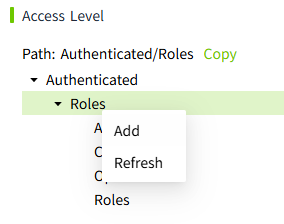
Navigate to VC Hub identity provider page, then create a new provider with the client id, client secret and openId onnecct meta docuemnt Url
-
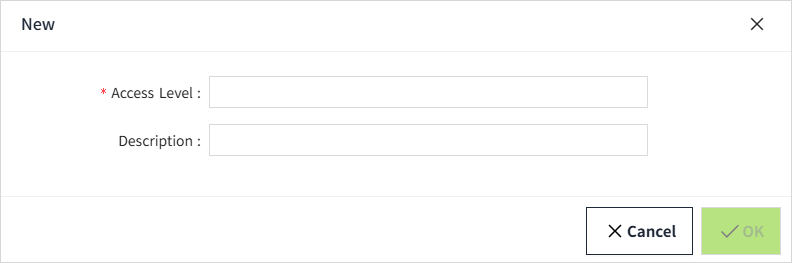
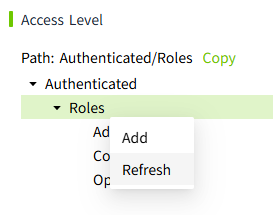
Click the "Login Test" of the AzureAD provider, then current page is navigated to Microsoft login page.
-
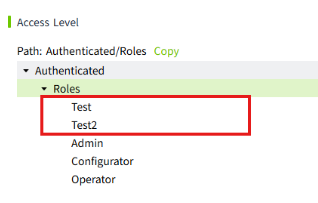
Enter the personal user account or domain account, then login page shows the random number used to verify the user account.
-
Enter the number into the Microsoft Authenticator on the mobile phone, then login request is auhenticated.