Create History Database
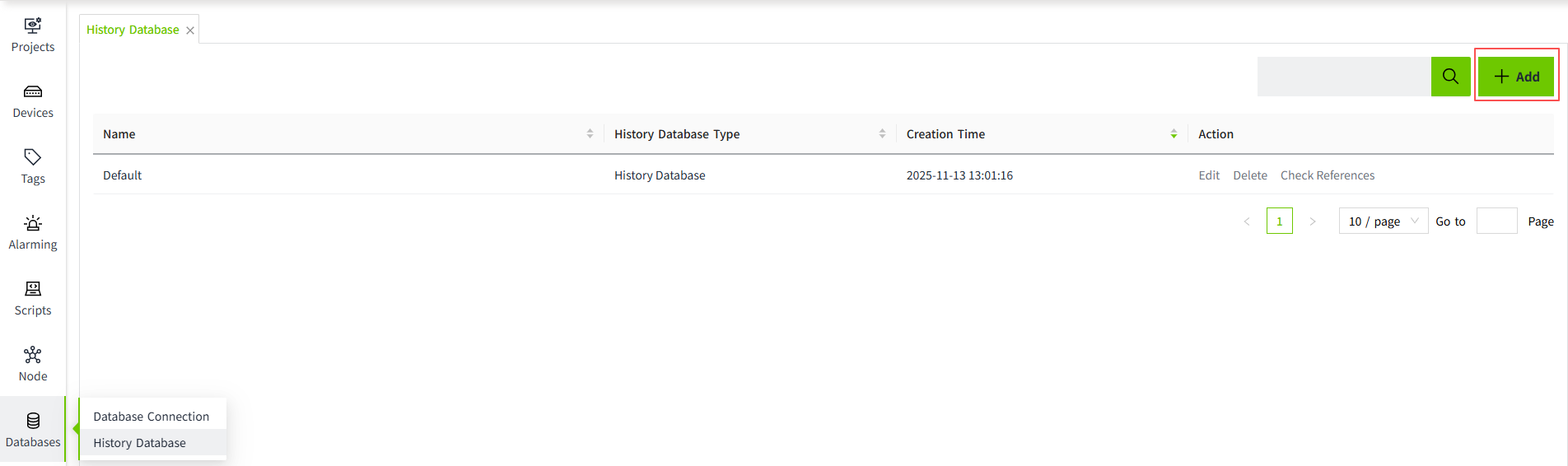
- On the "Databases" -> "History Database" screen, click the "Add" button.
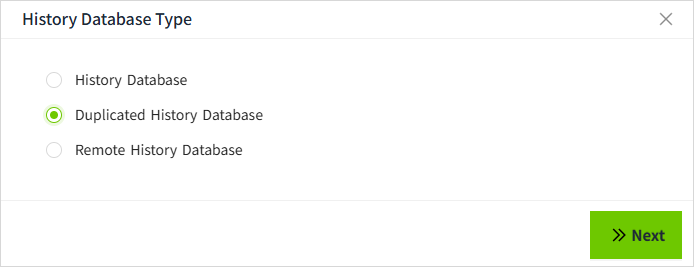
- In the following popup window, select History Database and click "Next" button.
-
Fill in the configuration and click "OK" button to save.
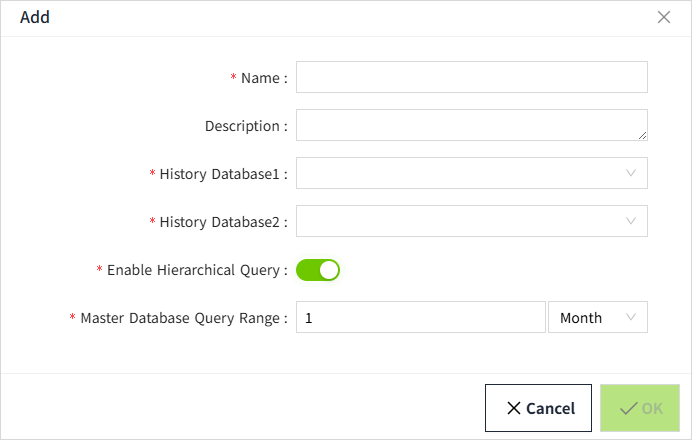
Note: When InfluxDB is selected , there is no configuration for partitioning, pre-processing, and data cleaning (InfluxDB itself has the above configurations, VC Hub does not provide this configuration).
When data of type InfluxDB is selected for the database connection, the following screen is displayed:
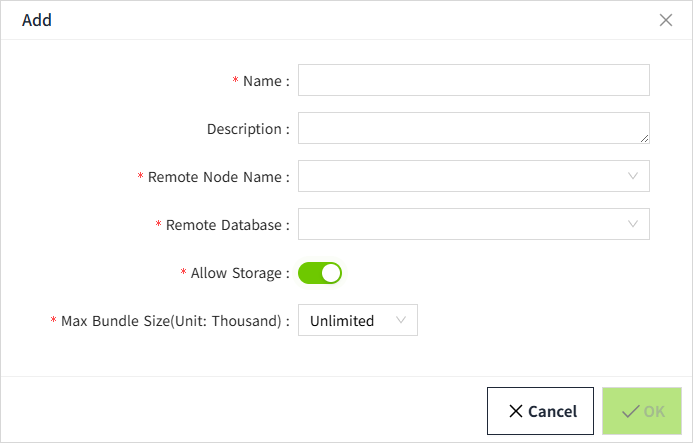
Configuration description
| Configuration items | Description |
|---|---|
| Name | Name of the history database. |
| Description | Description Information of the history database. |
| Database Connection | The database connection used for this configuration, derived from data created by the Database Connections page. |
| Enable Partitioning | Whether or not to partition the stored historical data for storage. |
| Partition Size | The size of the data storage partition. According to the partitioning rules, data with the same rules will be stored together. |
| Enable Pre-Processed | Whether to enable preprocessing. |
| Pre-Processing Window Size(min) | The time window interval for preprocessing historical data. |
| Enable Data Pruning | Whether or not to delete historical data that exceeds the data purge time configuration. |
| Prune Range | Data retention time, data exceeding this configuration will be deleted. |