Email(SMTP)
Used to configure the email sending service for alarm notifications.
Create Email (SMTP) Service
- Click "Alarming" -> "Alarm Notifications" -> "Services" to open the “Services” list page.
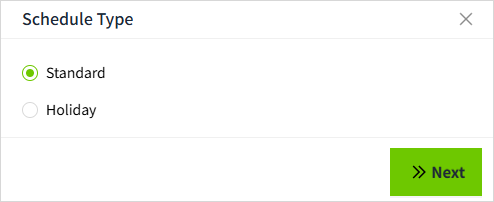
- Click the "Add" button. In the new pop-up window, select "Email (SMTP)".

- Click "Next" to enter the detailed configuration window.
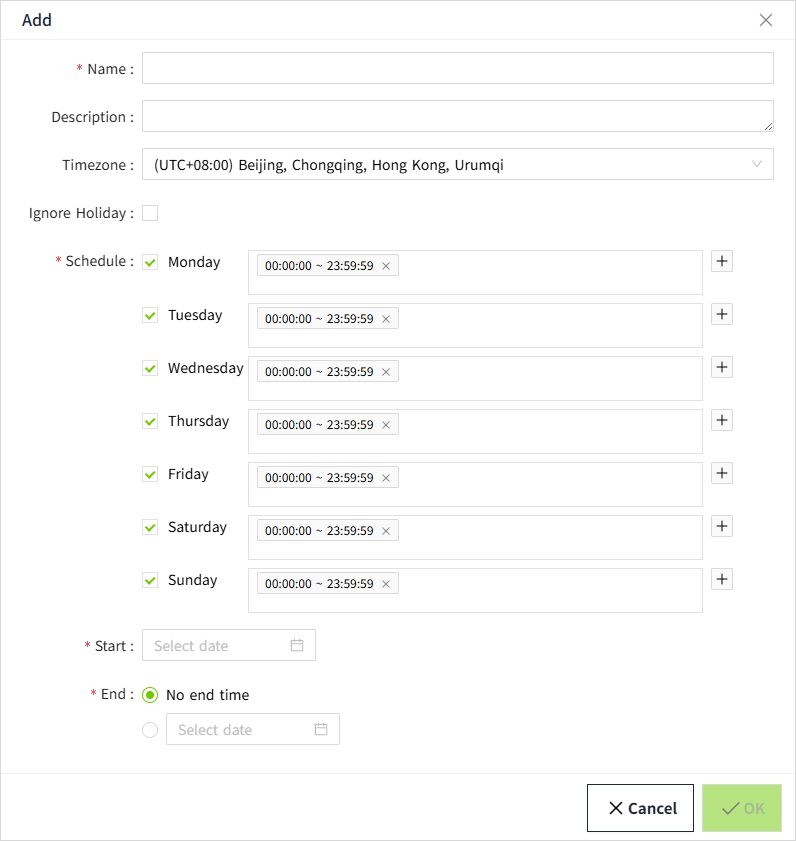
- After setting up, click the "Connection Test" button to check if the connection is successful.
- If the test is successful, click the "OK" button to add the data.
Properties
| Name | Description |
|---|---|
| Name | Notification service name. |
| Description | Notification service description. |
| From Address | Email account required for sending emails. |
| SMTP Server | SMTP server address required for sending emails. |
| Secure Connection | SMTP server secure connection method. |
| SMTP Port | SMTP server port address. |
| User Name | User name for logging into the SMTP server (usually the sender’s email account). |
| Password | Password for logging into the SMTP server (usually the sender’s email password). |
| SMTP Timeout(ms) | SMTP server connection timeout. |
| Connection Test | Click the button to test if the email configuration is successful. |
Setting a GMAIL Password
For security purposes, Google's Gmail requires the use of an app-specific password when authorizing third-party login.
To use an app-specific password, the Gmail account must have two-step verification enabled. If two-step verification is already enabled, you can proceed directly to the steps for creating an app-specific password
2-Step Verification
- Open your Google Account.
- In the navigation panel, select Security.
- Under “How you sign in to Google,” select Turn on 2-Step Verification.
-
Follow the steps.
Sign in with app passwords
Important Note: To create an app-specific password, you must enable two-step verification for your Google account
- Visit the app-specific password creation webpage: https://myaccount.google.com/apppasswords.
- Enter the name of the application that requires the password, such as "VCHub"
- Copy and save the app-specific password for future use
If the following situation occurs when you open the application-specific password creation page, please refer to the above instructions, enable two-step verification, and then reopen the page
Enable Smtp
- On your computer, open Gmail
- In the top right, click Settings See all settings.
- Click the Forwarding and POP/IMAP tab.
- In the "POP download" section, select Enable POP for mail that arrives from now on.
Test Gmail
After entering your account and password(For Gmail service, please enter the application-specific password created above) on the configuration page, you can click "Connection Test " to verify whether the account credentials are correct.

References
POP, IMAP, and SMTP settings for Outlook.com - Microsoft Support
IMAP, POP, and SMTP | Gmail | Google for Developers
How to use the Email Notification Service
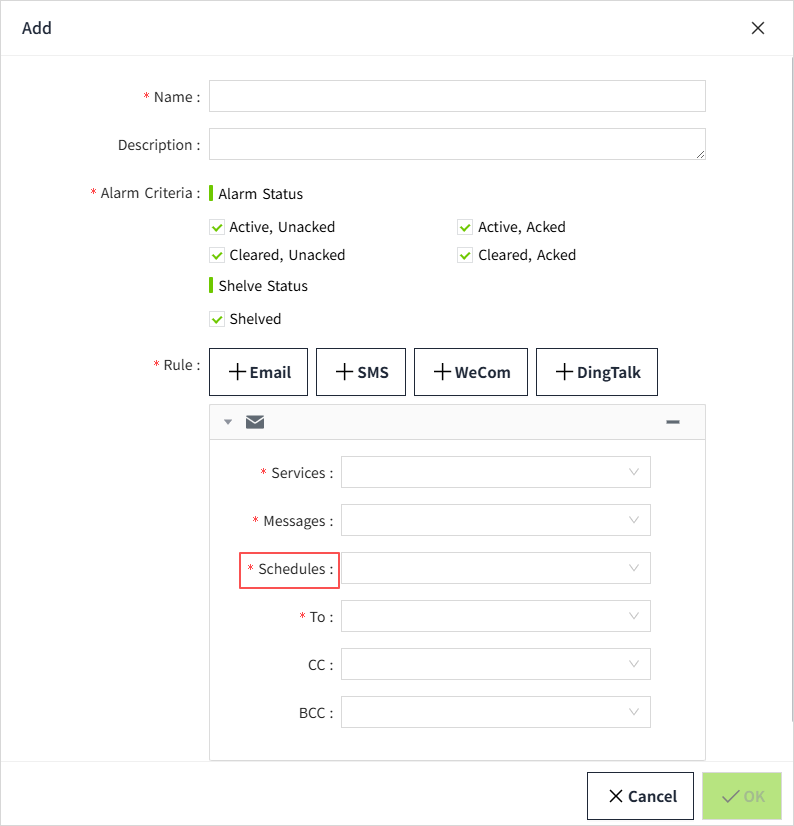
In the alarm notification rules, you will select the notification service.
- Click on "Alarming" -> "Alarm Notifications" -> "Rules" to enter the notification rules list page.
- Click the "New" button in the upper right corner of the list.
-
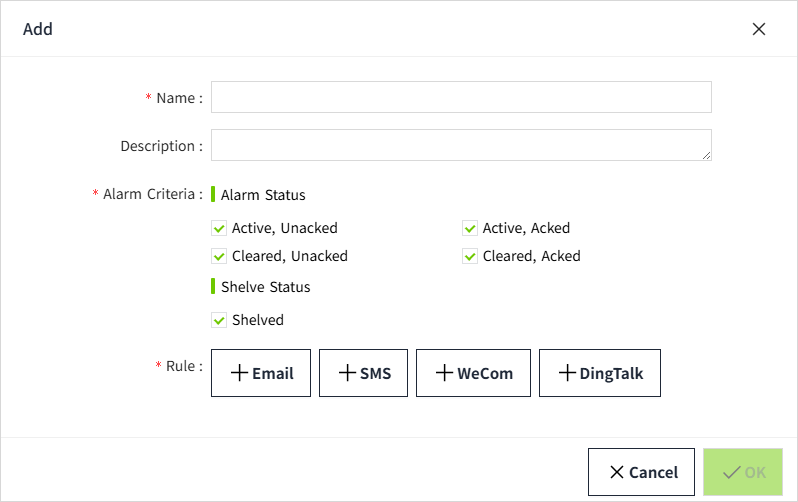
In the pop-up window, click the '+Email' button to add a new Email notification rule.In the notification service dropdown, select the previously created notification service.