Schedules
Notification scheduling is used to manage and set the schedule for sending alarm notifications at specific times or dates. By configuring the notification schedule, users can flexibly control when the VC Hub system sends notifications, ensuring that alarms are communicated at appropriate times. This is crucial for avoiding unnecessary disturbances or missing critical notifications. For example, you can configure the system to send alarm notifications from Monday to Friday, between 09:00 and 18:00 each day.
Standard Schedule
- Click "Alarming "->" Alarm Notifications "->"Schedules" to enter the notification schedule list page.
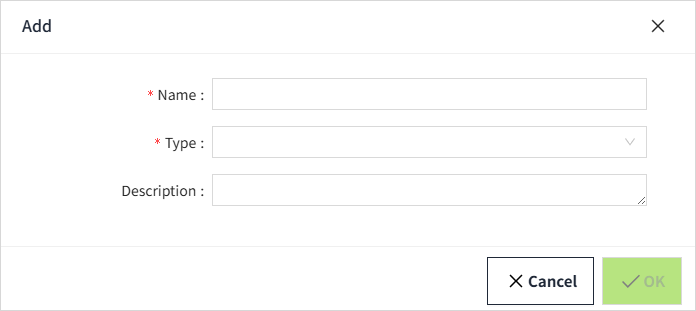
- Click the "Add" button. In the new pop-up window, select "Standard".
- Click "Next" to enter the detailed configuration window.
Properties
| Name | Description |
|---|---|
| Name | Schedule Name, required and must be unique. |
| Description | Description of the schedule, optional. |
| Timezone | Time zone for the schedule to run. |
| Ignore Holiday | Whether to pause notifications during holidays. |
| Schedule | Users can set specific time periods within regular days (such as weekdays) for sending notifications. Multiple time periods can be selected, with precise settings down to the exact hours, minutes, and seconds. |
| Start | Set the start time for the schedule to take effect. |
| End | - No end time:The schedule will continue to execute until manually disabled or modified. - End:Set the end time for the schedule to expire. |
4.Once the setup is complete, click the "OK" button to finish adding the new configuration.
Holiday Schedule
- Click "Alarming "->" Alarm Notifications "->"Schedules" to enter the notification schedule list page.
- Click the "Add" button. In the new pop-up window, select "Holiday".
- Click "Next" to enter the detailed configuration window.

Properties
| Name | Description |
|---|---|
| Name | Schedule Name, required and must be unique. |
| Description | Description of the schedule, optional. |
| Timezone | Time zone for the schedule to run. |
| Date Range | - Satrt Date: Holiday Start Time - End Date: Holiday End Time |
4.Once the settings are complete, click the 'OK' button to finish adding.
View Schedule
Click 'View Schedule' in 'Regular Schedule' to see the current schedule dates in the pop-up schedule table.

Click 'View Schedule' in 'Holiday Schedule', and the pop-up schedule table will display all holiday dates.
The core purpose of notification scheduling is to ensure that notifications are sent according to the expected time and date requirements, avoiding unnecessary notifications at inappropriate times while ensuring that critical notifications are delivered promptly.
How to use the Schedules
In the alarm notification rules, you will select the notification service.
- Click on "Alarming" -> "Alarm Notifications" -> Rules" to enter the notification rules list page.
- Click the "New" button in the upper right corner of the list.
- In the pop-up window, click the '+Email' or '+SMS' button to add a new notification rule.In the schedule dropdown, select the previously created schedule.
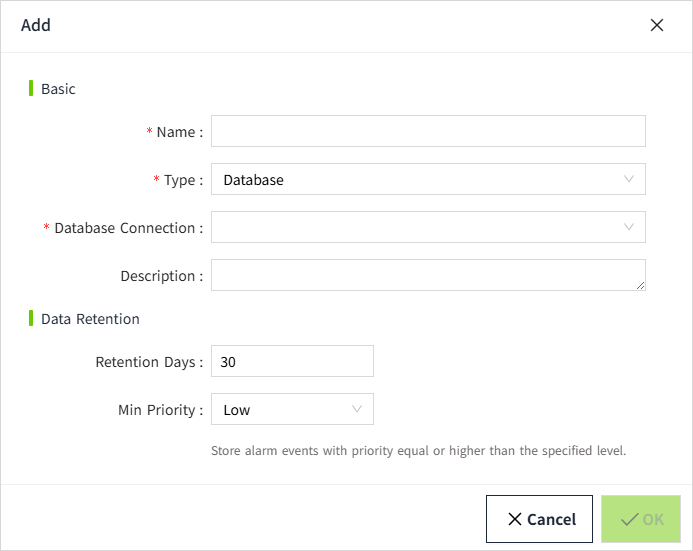
Note: Notification schedules can only select regular schedules. The purpose of holiday schedules is to determine whether regular schedules should ignore these holidays when sending notifications.