Rules
Notification rules offer flexible configuration options that allow you to precisely define the conditions for sending alerts, select the type of notification service (such as email or SMS), specify the list of recipients, and set the timing of notifications. This ensures that critical information is promptly communicated to the appropriate personnel.
Add
- Click "Alarming" -> "Alarm Notifications" -> "Rules" to open the “Rules” list page.
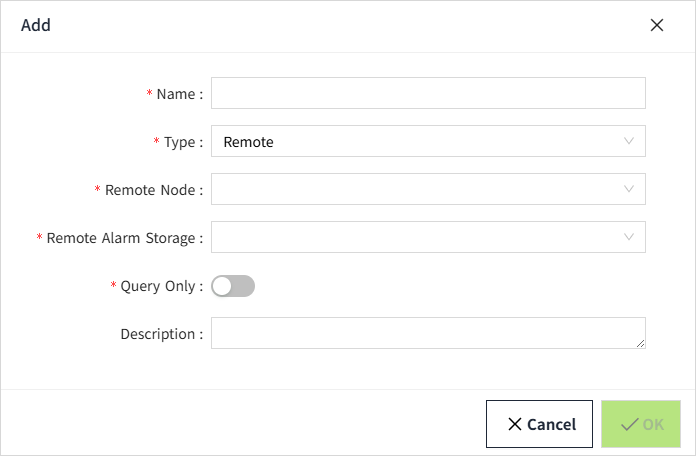
- Click the "Add" button. In the pop-up window, proceed with setting the properties.
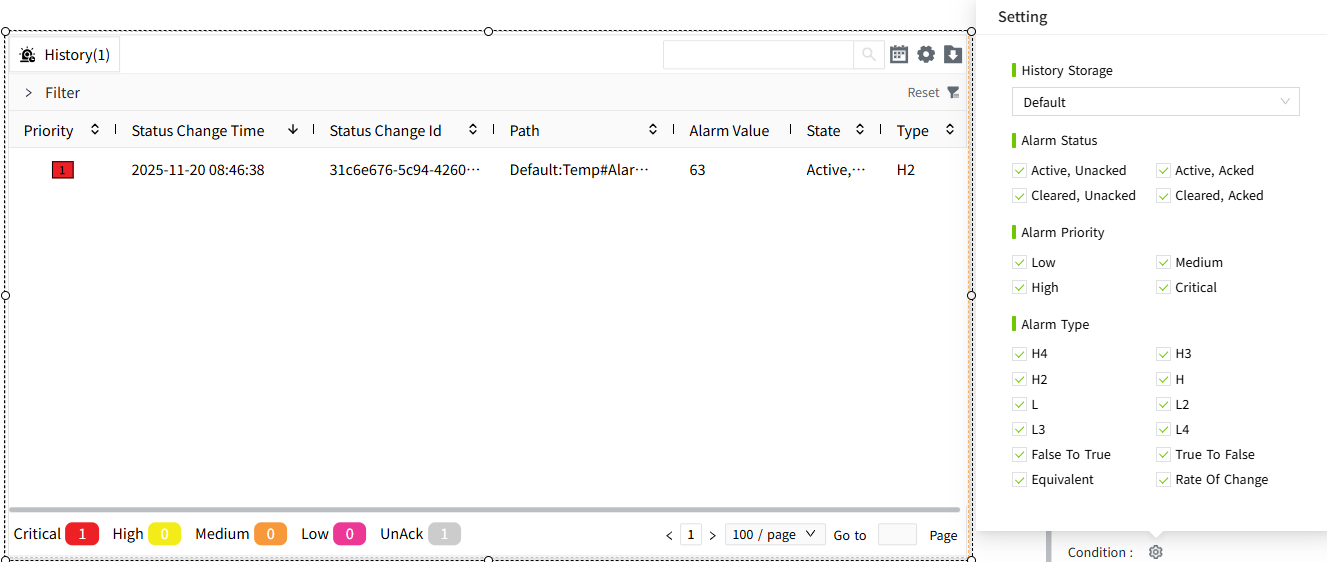
- After completing the settings, click the "OK" button to save.
Porperties
| Name | Description |
|---|---|
| Name | The name of the notification rule is required. The name is unique and cannot be repeated. |
| Description | Description of the notification rule, optional. |
| Alarm Criteria | Decide whether to send an alarm notification based on the Alarm Status or Shelve Status. |
| Rule | Includes four notification types: Email , SMS, WeCom, DingTalk. Click the corresponding button to display the respective settings interface. |
Detailed introduction of "Rule"
| Rule | Description |
|---|---|
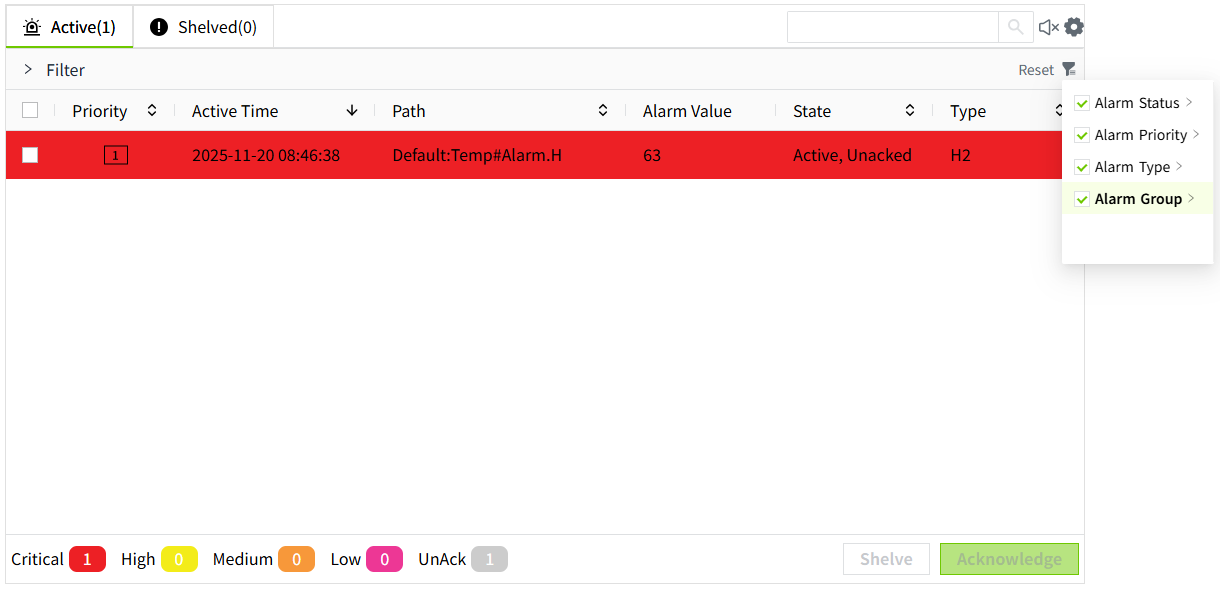 - Service: Select from the dropdown an Email (SMTP) type notification service that has been created and is currently enabled. - Messages: Automatically filtered based on the selected service, only showing Email (SMTP) type notification content that has been created and is currently enabled. - Schedule: Select from the dropdown a schedule of the regular type that has been created and is currently enabled. - To: Set the recipients of the email. You can select multiple user groups from the dropdown. After selecting a user group, click the "..." button to display all users within the selected group. - CC: Set the email's CC recipients. You can select multiple user groups from the dropdown. After selecting a user group, click the "..." button to display all users within the selected group. - BCC: Set the email's BCC recipients. You can select multiple user groups from the dropdown. After selecting a user group, click the "..." button to display all users within the selected group. Note: When logging in via OpenID Connect, if you want users to receive alarm notifications, you must manually create users in VC Hub and add them to the appropriate user groups. | |
| SMS |  - Service: From the dropdown, select a notification service of the SMS (Ali Cloud) or SMS (Twilio) type that has been created and is currently enabled. - Messages: Automatically filtered based on the selected notification service. For example, if you select an SMS (Ali Cloud) type notification service, only SMS (Ali Cloud) type notification content will be displayed in the notification content dropdown. - Schedule: From the dropdown, select a regular type schedule that has been created and is currently enabled. - Receiver: Set the recipients for the alarm notification SMS. You can select multiple user groups from the dropdown. After selecting a user group, click the "..." button to display all users within the selected group. Note: When logging in via OpenID Connect, if you want users to receive alarm notifications, you must manually create users in VC Hub and add them to the appropriate user groups. |
| WeCom | 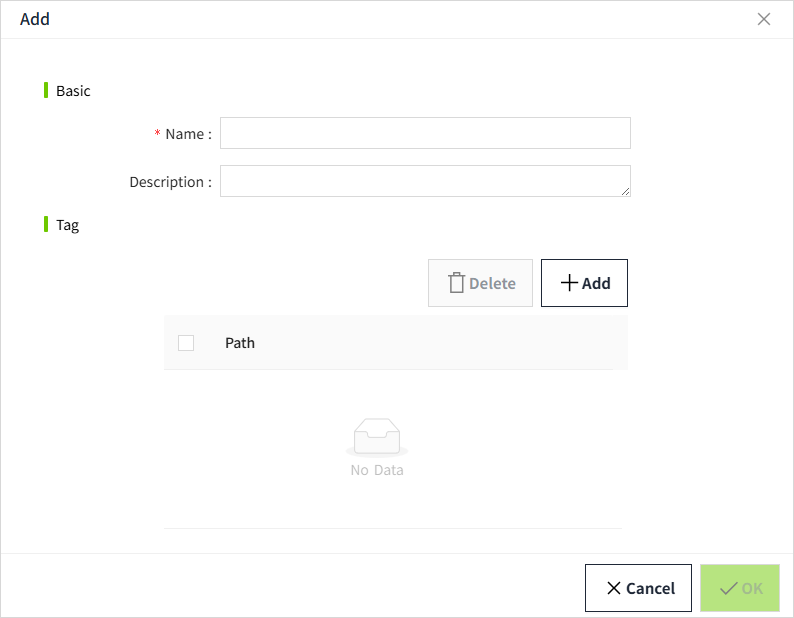 - Services: A dropdown listing all enabled notification services of the WeCom type that have been created. - Messages: Automatically filtered based on the selected service. For example, if a WeCom–type service is chosen, the “Message” dropdown will only list contents defined for WeCom. - Schedules: From the dropdown, select a regular type schedule that has been created and is currently enabled. - Receivers: Configure who will receive the alarm notifications. Based on the selected notification service, the recipient list is automatically populated with the appropriate options. You can multi-select recipients, choosing from WeCom groups or individual WeCom accounts. |
| DingTalk |  - Services: A dropdown listing all enabled notification services of the DingTalk type that have been created. - Messages: Automatically filtered based on the selected service. For example, if a DingTalk–type service is chosen, the “Message” dropdown will only list contents defined for DingTalk. - Schedules: From the dropdown, select a regular type schedule that has been created and is currently enabled. - Receivers: Configure who will receive the alarm notifications. Based on the selected notification service, the recipient list is automatically populated with the appropriate options. You can multi-select recipients, choosing from DingTalk groups or individual DingTalk accounts. |
How to use the Email Notification Rule
Set notification rules for each alarm on the tag. When the alarm is triggered, the system will automatically send alarm notifications to the relevant personnel based on the configured notification rules.
