Email(SMTP)
This configuration is used to define what is included in the email notification when an alarm is triggered. With this setting, you can customize the subject, body, and other relevant information of the email to ensure that the recipient can quickly understand and respond to the alarm.
Create Notification Message Email(SMTP)
- Click "Alarming "->" Alarm Notifications "->"Messages" to enter the notification message list page.
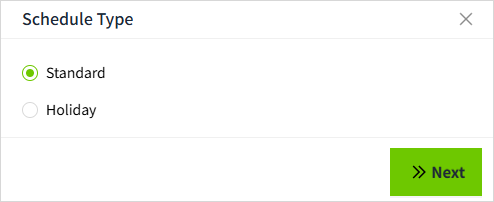
- Click the "Add" button. In the new pop-up window, select "Email (SMTP)".

- Click "Next" to enter the detailed configuration window.
- Once the setup is complete, click "Send Test" to check if the email is sent successfully.
- If the test is successful, click the "OK" button to add the data.
Properties
| Name | Description |
|---|---|
| Name | The name of the notification message is required. The name is unique and cannot be repeated. |
| Description | Description of the message of the notification, optional. |
| Subject | The subject of the email received. |
| Message | The content received in the email is configured through the content settings button. Clicking this button will bring up a content parameter dialog. The parameters set here will be replaced with actual values when an alarm occurs. To insert a parameter into the email content, click in the content window to place the cursor, then click the parameter settings button. From the parameter list, select the desired parameter by clicking on it, and it will be automatically inserted at the cursor's position. Message parameters  Note: urlPath (alarm address parameter) is used to construct the URL for the alarm information, which consists of the server address, port number, and the specific page path. The detailed explanation is as follows: 1. Server address and port number: http://localhost:4300 This means that the request will be sent to a server named "localhost" and accessed via port number "4300". When adding a new entry, the current server address and port will be automatically retrieved. 2. Page path: /#/alarm/ This path is fixed and points to the alarm confirmation page.3. Specific path: {urlPath} This is a placeholder representing the specific alarm parameter path. When receiving an actual message, this placeholder will be replaced with the real alarm parameters. |
| Retry Count | The alarm generates the number of retries after an email delivery failure. |
| Retry Delay(s) | The delay time before retrying to send an email after a failed attempt. |
| Send Test | After the above configuration, click the 'Send Test' button and a new window will pop up. Enter the email address to receive the test email in the new window, select the email service you have created, and click the 'Send' button to check whether the email is received correctly.  |
How to use the Email Notification Service
In the alarm notification rules, you will select the notification service.
- Click on "Alarming" -> "Alarm Notifications" -> "Rules" to enter the notification rules list page.
- Click the "New" button in the upper right corner of the list.
-
In the pop-up window, click the '+Email' button to add a new Email notification rule.In the notification message dropdown, select the previously created notification message.